Category: QR Code Guides

  • How to Create an Instagram QR Code for Your Business

    How to Create an Instagram QR Code for Your Business

    OVERVIEW

    In today’s hyper-connected world, speed is the ultimate currency. If a potential client sees your van, flyer, or website, you have only seconds to capture their interest and attention.
    The problem is that the physical and digital worlds often feel disconnected. If a customer must manually type a complex social media handle, it creates significant digital friction and discourages engagement. In business, friction costs you money. When a customer is forced to work for information, they often simply give up and move on to a competitor. To solve this, you should create Instagram QR code assets that act as an instant portal, moving customers from the physical street to your digital portfolio in a single second.

    What Exactly is an Instagram QR Code

    An Instagram QR code is a scannable bridge between your offline marketing and your online presence. When a customer scans the code with their smartphone camera, it instantly opens your Instagram profile, reel, or pre-filled Direct Message.
    It skips the search process, ensuring users land exactly where intended without getting distracted by competing profiles or content. This simple tool turns passive observers into active high intent leads regardless of where your business is located.

    Why Your Business Needs an Instagram QR Code

    We think we might have gotten this wrong. If you’re looking for an image, please try again with “Create Image” enabled in the chat bar.

    • Instant Visual Proof For many services seeing is believing. A QR code lets customers jump straight to your latest project photos instantly boosting your credibility.
    • Zero Typos Zero Lost Leads Handles with underscores or dots are easy to mistype. A QR code is 100% accurate every time ensuring you never lose a lead to a spelling error.
    • Frictionless Following It is much easier to get a follow when the person is already looking at your grid on their phone. You are capturing their interest while it is at its peak.
    • Global Marketing Data Professional generators allow you to track which flyers or signs are actually being scanned. This helps you spend your marketing budget where it actually works whether you are advertising in London New York or Tokyo.

    How to Make a Custom QR for Instagram

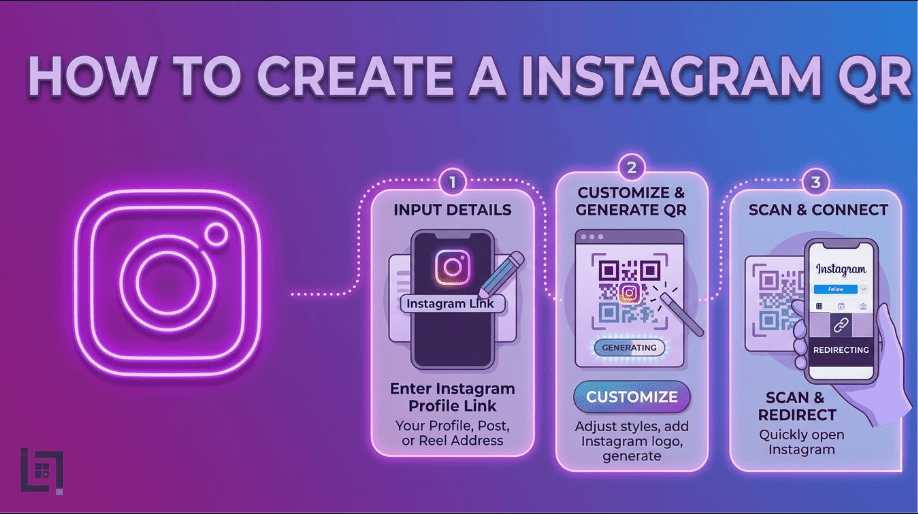
    We have made the process simple so you can create Instagram QR code versions for different campaigns in under a minute:

    1. Access the Generator Log in to your ScanMyQR dashboard and head to the create QR section.
    2. Select Content Type Click the Instagram icon from the menu to open the specialized configuration fields for social media links.
    3. Enter Your Details Paste your full Instagram Profile URL such as your official business link.
    4. Give it a custom name like Summer Promo Flyer or Fleet Vehicle Rear to help you identify which campaign is driving the most engagement.
    5. Generate and Customize Click the purple generate QR code button. You can then download your high resolution code ready for your marketing materials.

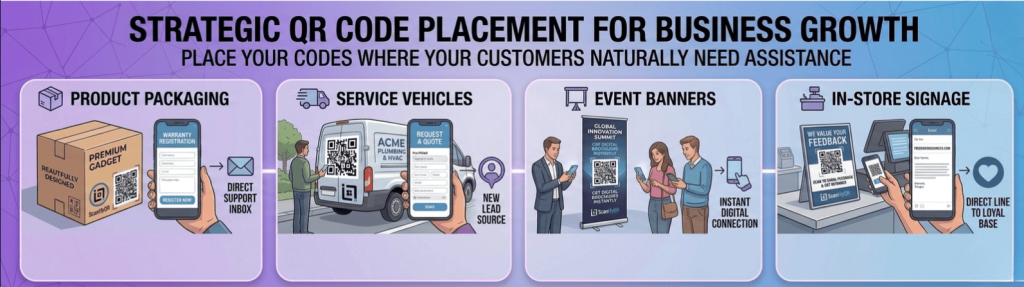
    Where to Place Your QR Code for Maximum Scans

    To turn your physical assets into a lead generation machine put your codes where people naturally look:

    • Fleet Vehicles Put a large code on your back doors. A simple see our latest work message next to the code turns every traffic jam into a marketing opportunity.
    • Business Cards Do not clutter your card with text. A clean QR code on the back looks modern and allows prospects to follow you while your conversation is still fresh in their minds.
    • In Store Signage If you have a physical shop or a checkout counter a QR code is the perfect way to turn a walk in visitor into a long term social media follower.
    • Invoices and Receipts This is a great place to create Instagram QR code links to a post where you ask for tagged photos or reviews turning happy customers into brand ambassadors.

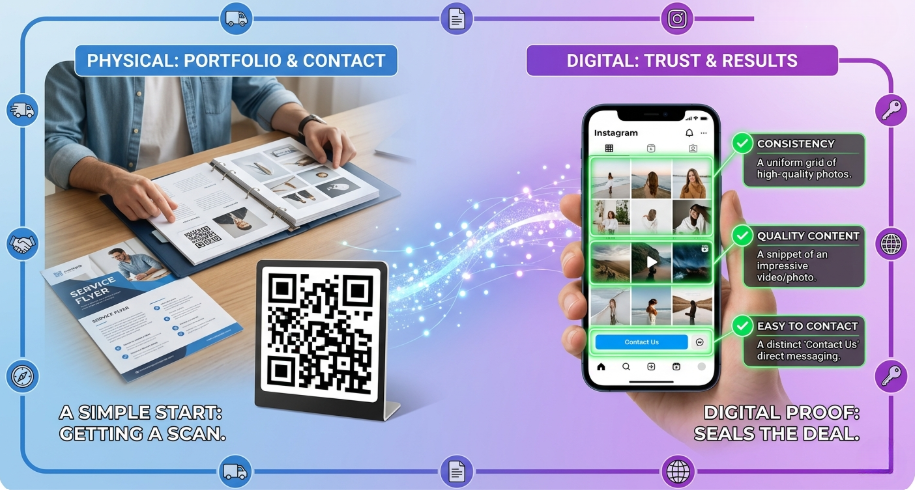
    Bridging the Physical to the Digital

    Simply getting a scan is the start not the finish line. In the service industry your digital proof is what seals the deal. When someone scans your code and lands on Instagram, they expect consistency, quality content, and a clear way to contact you.

    Create an Instagram QR Code

    Your Instagram serves as a living portfolio that updates in real time. Unlike a static website that might be months out of date your social feed shows that you are active and reliable. Use your QR code to link to a specific highlights reel that shows your team in action. This builds a layer of trust that global customers appreciate before they ever pick up the phone to call you.

    Creative Content Strategies for Service Professionals

    If you are a service provider you should use your Instagram QR code to lead people to behind the scenes content. People everywhere love seeing how things are made or fixed.

    For example an interior designer could have a QR code on a site sign that leads to a before and after reel of that specific project. A landscaping company can place a code on equipment linking to a satisfying time-lapse video of a garden transformation. This kind of content is highly engaging and much more likely to result in a direct message or a follow than a standard home page. By choosing the right destination for your scan you are providing an experience that validates your expertise.

    3 Golden Rules for QR Code Success

    1. Always Use a Call to Action A code by itself is just a box of dots and invites confusion. Always tell the user why they should scan such as scan to see our portfolio or scan for daily tips.
    2. Size and Contrast If the code is too small or the colors are too light a phone camera will not be able to scan it. Keep it at least 2cm wide on small items and use high contrast designs like black on white.
    3. The Pre Flight Test Never skip this step. Always scan the code yourself with both an iPhone and an Android to ensure it opens the app before you send 1000 flyers to the printer.

    Troubleshooting Common Scan Issues

    Sometimes a customer might struggle to scan your code. This usually happens for a few avoidable reasons. First check the lighting. If a QR code is placed behind a reflective glass window in bright sunlight the glare might prevent the camera from reading the pixels.

    Second check the scan distance. If you put a small code high up on a billboard no phone will be able to focus on it. Ensure the code is at eye level and large enough for the environment it is in. Lastly check the link. If you change your Instagram handle your old QR code will break. This is why professional tools are vital as they allow you to update the destination link without needing to reprint your materials.

    Ready to Supercharge Your Growth

    In a competitive global market you cannot afford to make your customers work to find you. By removing every possible barrier to entry you make it effortless for potential fans to join your community and see the value you provide.

  • How to Create a YouTube QR Code for Your Business

    How to Create a YouTube QR Code for Your Business

    Overview

    Create a YouTube QR Code which helps in the landscape of modern digital marketing, video content has undeniably become the king of engagement. Whether you are a plumber sharing a “how-to” tip, a real estate agent filming a property walkthrough, or a consultant hosting an educational webinar, video allows you to build trust, demonstrate expertise, and showcase your personality in ways that static text never can. 

    However, a major bottleneck remains: discoverability. If a potential customer has to open their YouTube app, navigate the search bar, mistype your channel name, and sift through dozens of irrelevant search results, you have allowed massive amounts of digital friction to seep into their experience. 

    The goal is to move the viewer from your physical presence to your digital video library in the blink of an eye. The bridge to that goal is a YouTube QR Code. By simplifying the journey from I’m curious to I’m watching, you ensure your high-quality video content actually gets the views it deserves.

    What Exactly is a YouTube QR Code?

    A YouTube QR code is a sophisticated digital shortcut that serves as a direct pipeline to your video content. When a user scans this barcode with their smartphone, their device instantly launches the YouTube application and navigates directly to your channel, your latest video upload, or a specific playlist you’ve curated. It removes every barrier that stands between a viewer and your content. No more spelling errors, no more searching, and no more distraction from competing channels. It turns your physical marketing material—like a business card or a brochure—into a dynamic streaming platform, allowing you to provide deep, educational, or entertainment value to your customers right where they are.

    Why Your Business Needs a YouTube QR Code

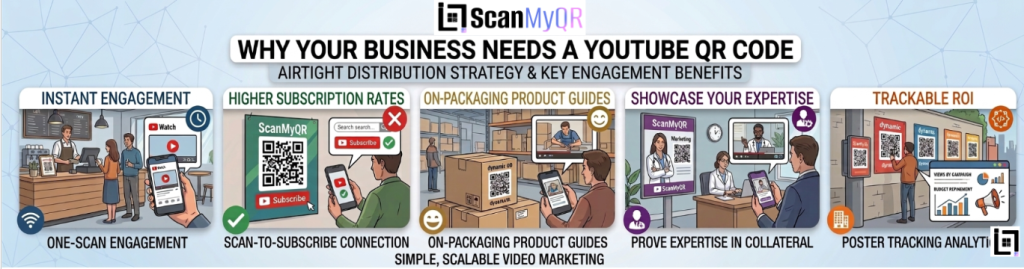
    Before you pour more resources into video production, you must ensure that your distribution strategy is airtight. Here is why every business needs a YouTube QR code.

    Create a youtube qr code
    • Instant Engagement: Video is the most effective medium for building rapport. By making your videos accessible via a single scan, you can increase your watch time and viewer count immediately.
    • Higher Subscription Rates: It is significantly easier for a user to scan a code and land on your channel page where they can hit “Subscribe” than it is for them to search for you from scratch.
    • Showcase Product Knowledge: If you sell physical products, a QR code on the packaging linking to an assembly or “how-to” video dramatically reduces customer service inquiries and improves post-purchase satisfaction.
    • Showcase Your Expertise: For service-based businesses, a QR code on your marketing collateral that links to a video of you solving a real-world problem is the single best way to prove that you are the expert they need to hire.
    • Trackable ROI: Using professional dynamic QR codes, you can see exactly which physical posters or mailers are actually driving views to your channel, allowing you to refine your marketing budget based on real data.

    How to make custom Qr for YouTube: The Custom Link Method

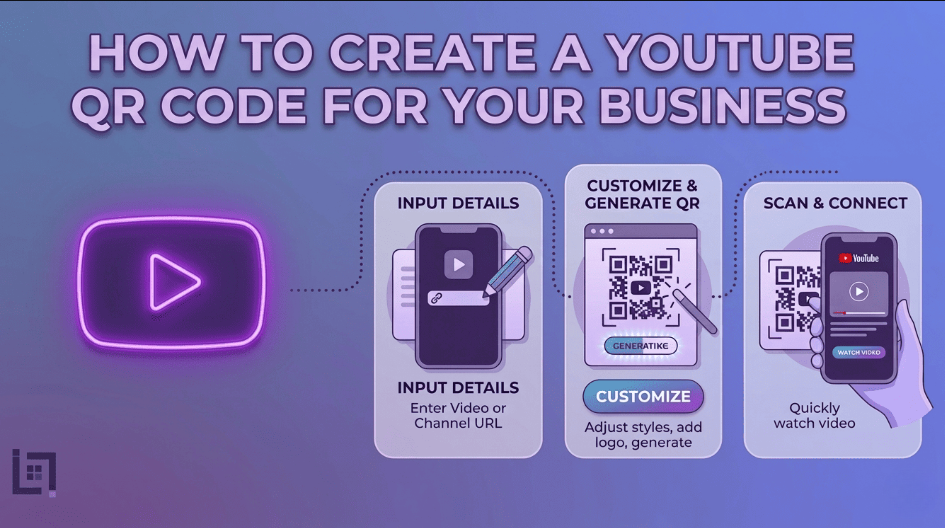
    Generating a custom YouTube QR code is a seamless, four-step process designed for both beginners and seasoned marketers:

    1. Access the QR Generator: Navigate to the “Create QR” section in the main dashboard menu of your platform.
    2. Select Content Type: From the content selection menu, click on the YouTube icon. This will trigger the configuration screen specifically built for video links.
    3. Enter Details: * Paste the direct URL of your YouTube channel, playlist, or individual video into the required field.
      • Provide a custom name in the “Name Your QR” field. This is crucial if you have different campaigns, as it allows you to distinguish between “Business Card QR,” “Van Decal QR,” or “Flyer QR.”
    4. Generate Code: Click the purple Generate QR Code button. Your code is now live and ready to be downloaded and integrated into your design files.

    Where to Place Your YouTube QR Code for Maximum Scans

    To turn your physical assets into a video-viewing experience, consider these high-impact locations:

    • Product Tags and Manuals: Place the code on your product box or in the user manual. A link to a “Tips and Tricks” video is a major value-add that customers love.
    • End of Physical Presentations: If you give speeches or run workshops, put a QR code on the final slide of your presentation. It’s the perfect place to offer a “bonus video” to attendees as they leave.
    • Trade Show Booths: Large-format QR codes on your display banners allow booth visitors to quickly pull up a video of your services or testimonials while they are standing there, providing social proof in real-time.
    • Business Cards: Use a simple design on the back of your card: “Scan to see our latest project results.” It adds a level of professionalism and depth that a standard business card cannot match.

    3 Golden Rules for QR Code Success

    To ensure your YouTube QR code actually leads to meaningful views and subscribers, adhere to these golden rules:

    1. Always Include a Call to Action (CTA): Never leave a QR code hanging. The user needs to know what they are getting. Use a clear, benefit-driven CTA like “Scan to see our 5-minute home maintenance guide” or “Scan to meet our team.
    2. Prioritize Mobile-Friendly Links: Since almost all QR scans happen on mobile devices, ensure that your video settings are optimized for mobile. Avoid long, confusing intro sequences that might cause a viewer to click away before the value is delivered.
    3. Test Before You Print: Always perform a pre-flight test. Scan the generated code with multiple devices to ensure it opens the YouTube app correctly. There is nothing worse than printing 5,000 flyers only to realize the link is broken or redirects to a browser-based login screen.

    Ready to Supercharge Your Lead Generation?

    Your YouTube content is a valuable asset, but it can only generate leads if people actually watch it. By implementing YouTube QR codes, you close the gap between your physical brand identity and your digital storytelling. But why stop at video? Your entire lead generation ecosystem from how you gather reviews to how you schedule appointments should be this seamless. Stop guessing which marketing channels are working and start using data-driven, trackable QR solutions to streamline your entire client journey.

    If you want to make it easier for customers to connect to your network, check out our detailed guide on How to Create a App store qr Code for Your Business. It covers everything you need to know about setting up a App store code so customers can connect instantly with just a scan.

  • How to Create a Facebook QR Code for Your Business

    How to Create a Facebook QR Code for Your Business

    Overview

    Create a Facebook QR Code In the vast digital ecosystem of the 21st century, Facebook remains a cornerstone for community building, customer service, and brand awareness. Service-based businesses use Facebook as digital storefronts where clients view recent work, read testimonials, and message you directly. However, the path from “potential customer” to “Facebook follower” is often littered with obstacles.

    If you rely on customers to type your business name into the Facebook search bar, you are leaving your growth to chance. They might encounter a competitor with a similar name, mistype your handle, or simply get distracted by other notifications. The solution is a Facebook QR Code. Create a Facebook QR code to provide instant page access, eliminating searches and letting anyone join via one scan.

    What Exactly is a Facebook QR Code?

    Create a Facebook QR code to link the physical world directly to your business page, posts, or events. Scanning the code triggers an automatic prompt, opening the Facebook application and routing users directly to your business profile. This bypasses app navigation and searches, providing a frictionless entry point that maximizes conversions by capturing short attention spans.

    Why Your Business Needs a Facebook QR Code

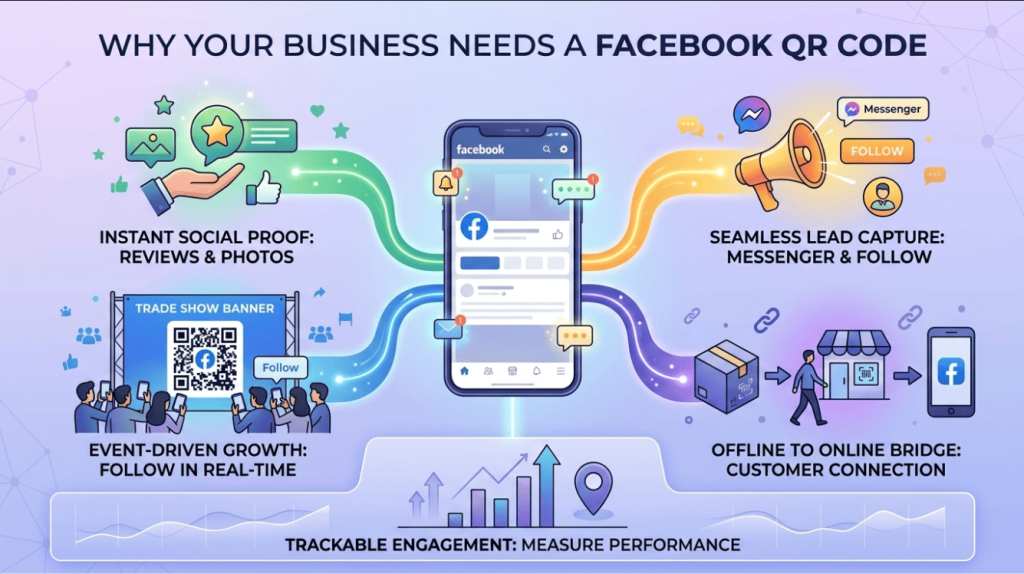
    Before you spend another dollar on traditional marketing, consider why a Facebook QR code is essential for scaling your digital community:

    Create a Facebook QR Code
    • Instant Social Proof: New customers want to see what others are saying about you. A QR code makes it effortless for them to land on your “Reviews” or “Photos” tab, instantly boosting your credibility.
    • Seamless Lead Capture: By directing people to your page, you make it easier for them to engage with your posts, ask questions via Messenger, or follow you for future updates.
    • Event-Driven Growth: If you are attending a trade show, local market, or networking event, a QR code on your display banner allows people to “Follow” you in real-time, turning a fleeting meeting into a long-term social connection.
    • Cross-Platform Bridge: It allows you to leverage your offline customer base—the people walking through your door or receiving your invoices—to grow your online audience, which then feeds back into your lead generation engine.
    • Trackable Engagement: When using a professional QR generator, you can track how many people scanned the code from a specific location, allowing you to see which of your offline marketing channels is actually driving your digital growth.

    How to make custom Qr for Facebook: The Custom Link Method

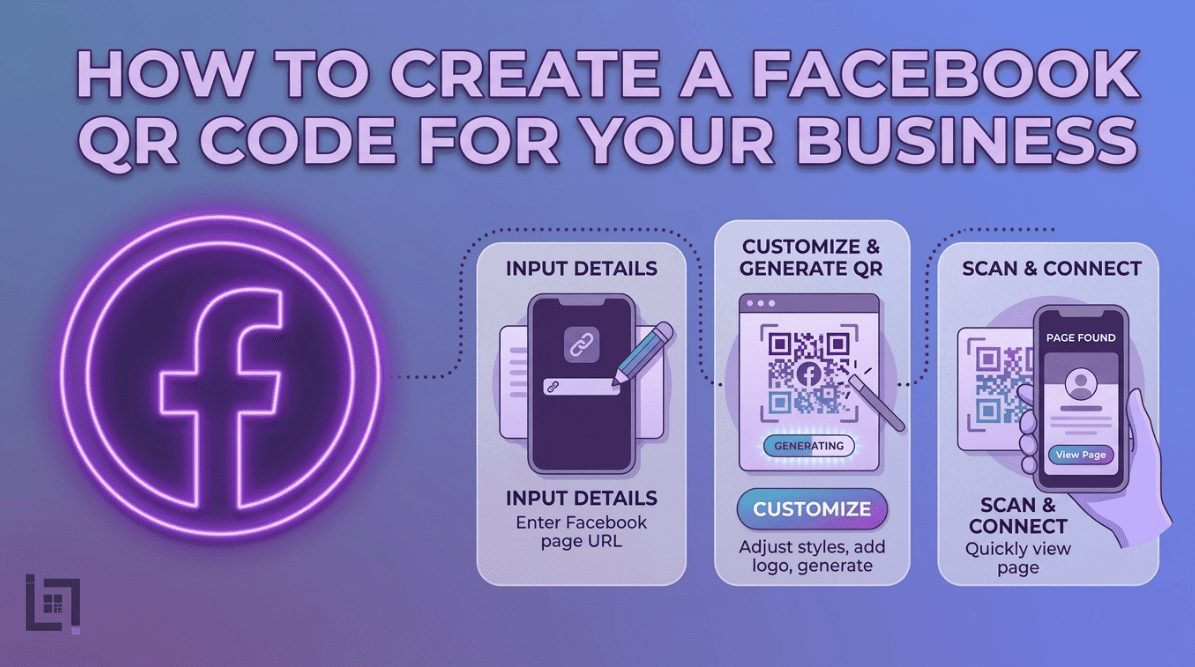
    Create a Facebook QR code is an efficient, four-step process that you can manage in seconds:

    1. Access the QR Generator: Navigate to the “Create QR” section in your Pixerfect dashboard’s main menu.
    2. Select Content Type: From the content selection menu, click on the Facebook icon. This will open the specialized configuration fields for social media links.
    3. Enter Details: * Paste your official Facebook Business Page URL into the required field.
      • Provide a custom name in the “Name Your QR” field (e.g., “Van-Side-FB-QR” or “Business-Card-FB-QR”). This naming convention is vital for identifying which campaign is driving the most engagement.
    4. Generate Code: Click the purple Generate QR Code button. Your unique, high-resolution QR code is now generated and ready for your marketing materials.

    Where to Place Your Facebook QR Code for Maximum Scans

    To turn your physical assets into a social-growing machine, place your Facebook QR codes where your customers naturally look:

    • Storefront Windows: If you have a brick-and-mortar location, put a large QR code on your window with the message: “Join our community on Facebook for daily updates.”
    • Invoices and Receipts: A QR code on your paper invoice that links to your “Reviews” section makes it remarkably easy for happy customers to leave feedback.
    • Business Cards: A simple QR code on the back of your card is much more modern than just writing “Find us on Facebook.” It allows your prospect to follow you instantly while the conversation is still fresh.
    • Printed Flyers and Brochures: Whenever you distribute printed marketing, the QR code acts as the digital call-to-action that keeps the conversation going long after the flyer has been put away.

    3 Golden Rules for QR Code Success

    To ensure your Facebook QR code translates into actual followers and engagement, follow these strict best practices:

    1. Always Include a Call to Action (CTA): A “naked” QR code invites confusion. Always provide a clear instruction, such as “Scan to see our recent projects” or “Scan to follow us for exclusive offers.”
    2. Prioritize Design and Size: If the code is too small, your customer’s phone won’t be able to scan it. Use high-contrast designs, preferably black on white, and ensure the QR code is sized appropriately for your surface.
    3. Test Before You Print: Never skip this step. Test your code on iPhone and Android to ensure it opens the Facebook app, avoiding clunky mobile browser logins.

    Ready to Supercharge Your Lead Generation?

    Building a Facebook following requires removing every possible barrier to entry, making it effortless for potential fans to join. A Facebook QR code bridges the gap between your physical brand and online community, offering a highly effective tool. However, this is just one piece of the puzzle. Scale your business like top-tier advertisers by tracking every scan and optimizing every digital touchpoint for maximum results.

    If you’re looking for more ways to connect with customers using QR codes, check out our detailed guide on How to Create a Wi-Fi QR Code for Your Business. This covers everything for setting up a WI-Fi QR code, letting customers reach you instantly with a single scan.

  • How to Create an Image QR Code for Your Business

    How to Create an Image QR Code for Your Business

    Overview

    In a world dominated by visual storytelling, the ability to share high-quality images instantly is a powerful business advantage to Create an image QR code. Whether displaying menus, brochures, or galleries, restaurants, agents, and technicians often face friction during the critical image hand-off. If you rely on email attachments, cloud links, or physical printouts, you are introducing delay and complexity.

    The modern solution is to Create an Image QR Code. Turning visual assets into scannable graphics creates portals, allowing customers high-resolution access on their screens when needed most. This is about providing instant value, reducing printing costs, and creating a tech-forward experience that your competitors are ignoring Create an image QR code.

    What Exactly is an Image QR Code?

    An image QR code is a dynamic, scannable shortcut that directs a user’s smartphone camera to a hosted digital image or gallery. Instead of forcing a client to navigate a folder structure or download a massive email attachment, a simple scan opens your image directly in their mobile browser. Whether it’s a menu, a promotional flyer, a product diagram, or a portfolio piece, the QR code acts as a direct link to your visual content. This professional, frictionless method puts your branding into customers’ hands, ensuring your message is seen exactly as intended.

    Why Your Business Needs an Image QR Code

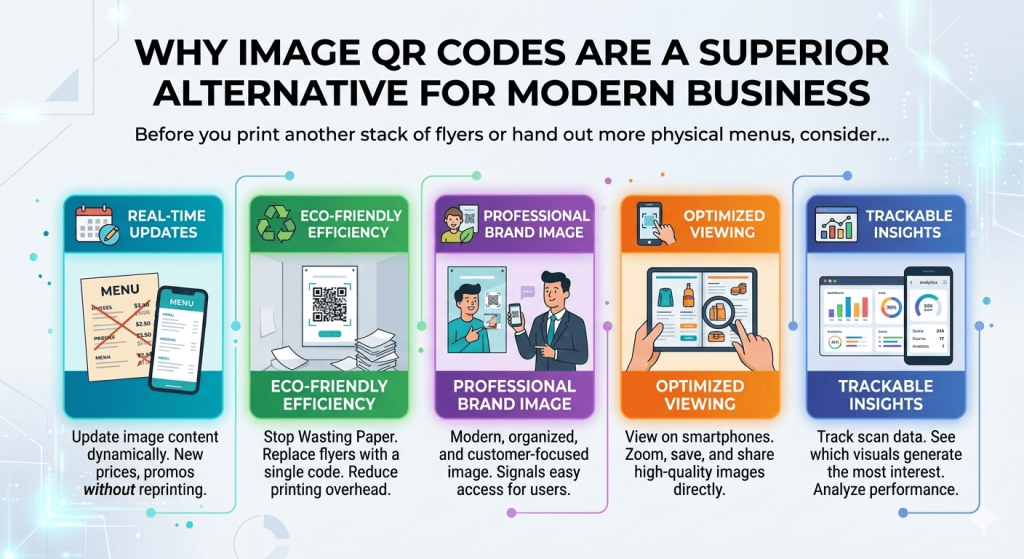
    Before you print another stack of flyers or hand out more physical menus, consider why an image QR code is a superior alternative for modern business:

    Create an Image QR Code
    • Real-Time Updates: With a dynamic image QR code, you can update the underlying image file whenever your information changes—like a new menu price or a seasonal promo—without ever needing to reprint your marketing materials.
    • Eco-Friendly Efficiency: Stop wasting paper. A single QR code on a wall or a business card can link to an entire gallery of images, brochures, or informational guides, significantly reducing your printing overhead.
    • Professional Brand Image: Using technology to deliver content signals that your business is modern, organized, and focused on the customer’s ease of access.
    • Optimized Viewing: A digital image on a smartphone screen can be zoomed, saved, and shared by the customer, which is far more useful than a static, one-time-use piece of paper.
    • Trackable Insights: When you use professional-grade QR code tools, you can track how many people are scanning your images, allowing you to see which visuals are generating the most interest from your physical audience.

    How to make custom Qr for Images: The Custom Link Method

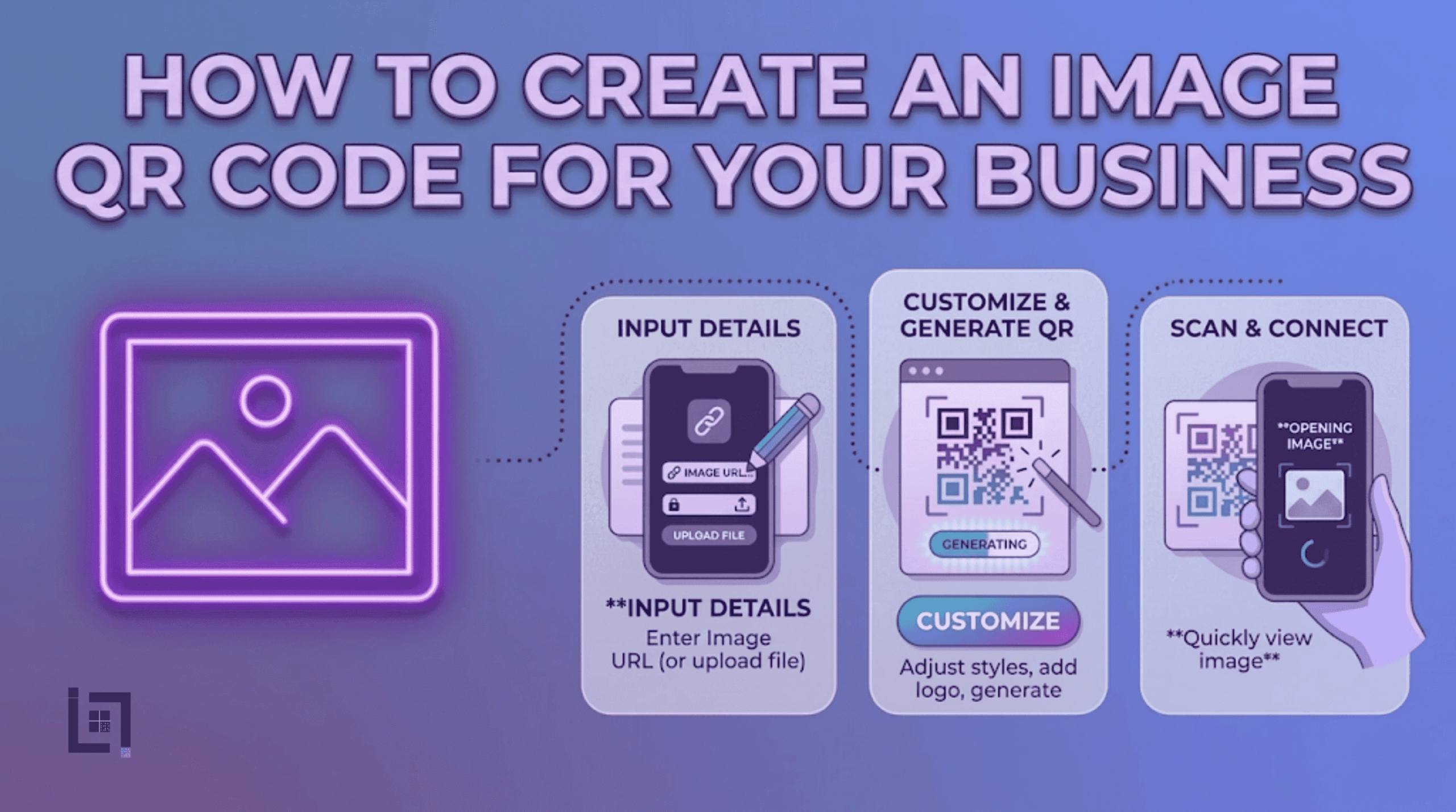
    Create an image QR code is a quick, four-step process designed to get your content live and ready for distribution:

    1. Access the QR Generator: Navigate to the “Create QR” section in your Pixerfect dashboard’s main menu.
    2. Select Content Type: Click on the Image icon. This will open the file-upload and configuration fields designed for visual asset sharing.
    3. Enter Details: * Click the upload button to select the image file from your device (e.g., JPG, PNG, or PDF).
      • Provide a custom name in the “Name Your QR” field (e.g., “Lunch-Menu-QR” or “Property-Brochure-QR”). This is vital for managing your different visual assets across various marketing campaigns.
    4. Generate Code: Click the purple Generate QR Code button. Your custom image-linked QR code is now created and ready for use in your designs.

    Where to Place Your Image QR Code for Maximum Scans

    Placement is where the utility of an image QR code truly shines. Here are the most effective places to deploy them:

    • Restaurant or Café Tables: Link to your full menu, including high-resolution photos of your signature dishes.
    • Product Packaging: Place the code on your product box to link to a digital user manual or a visual guide that shows how to assemble or use the item.
    • Trade Show Displays: Large-format QR codes on your trade show banners can link to a digital portfolio or a gallery of your recent projects, keeping your booth clean while providing deep information to interested leads.
    • Real Estate “For Sale” Signs: Place a code on the sign itself so passersby can instantly pull up the full photo gallery of the interior and property details while they are standing on the curb.

    3 Golden Rules for QR Code Success

    To ensure your image QR code is effective and professional, follow these three rules:

    1. Always Include a Call to Action (CTA): A code without a label is a mystery. Use a clear CTA like “Scan to view our digital menu” or “Scan to see the full property gallery.” This sets expectations and drives more scans.
    2. Prioritize File Compression: Even though high resolution is good, large file sizes take time to load. Ensure your images are optimized for web so they load instantly on a 4G/5G mobile connection. If the customer has to wait more than two seconds for the image to load, they will likely give up.
    3. Test Before You Print: Always perform a “pre-flight” scan. Test the link on iPhone and Android devices to ensure images display properly across various mobile browser environments.

    Ready to Supercharge Your Lead Generation?

    Sharing information shouldn’t be a hurdle for your customers. Using image QR codes removes friction from manual searches, creating a seamless, visual-first experience that builds trust and authority. But remember, the code is just the beginning. The goal is to build an entire customer journey that is fast, trackable, and optimized for conversions. 

    If you’re looking for more ways to connect with customers using QR codes, check out our detailed guide on How to Create a WhatsApp QR Code for Business. It covers everything you need to know about setting up a WhatsApp QR Code to let customers reach you instantly with just a scan.
  • App Store QR Code for Your Business | ScanMyQr

    App Store QR Code for Your Business | ScanMyQr

    An App Store QR Code helps your customers download your app instantly by scanning a simple code. In this guide, you will learn how to create an App Store QR Code for your business and use it to boost your app downloads effectively.

    Overview

    In the crowded landscape of mobile applications, visibility is the biggest hurdle. Get your high-quality app into your users’ hands. Friction often prevents users from reaching your app’s download page.

    Forcing customers to manually search the App Store or Google Play leads to drop-offs due to boredom or distraction. Consequently, the sheer volume of competing results causes unnecessary confusion. As a result, you lose valuable conversions at the final hurdle. Ultimately, this friction prevents potential users from completing the download process. The solution is an App Store QR Code. Use a direct link that automatically detects the user’s OS to remove adoption barriers. This simple scan transforms your physical marketing into a high-conversion download funnel.

    What Exactly is an App Store QR Code?

    An App Store QR code is a smart, universal barcode that acts as a gatekeeper to your mobile software. Unlike a standard URL link that might force an iPhone user to a page meant for Android, a professional App Store QR code is intelligent. Specifically, when scanned, it detects the device the user is holding—whether it is an iOS or Android device. Consequently, it automatically directs them to the correct download page for your app.

    Our QR code streamlines the user experience for an immediate download. It works perfectly across all devices to ensure an error-free transition.

    Why Your Business Needs an App Store QR Code

    Before you print your next batch of marketing materials, consider why this technology is a must-have for app-based growth:

    • Operating System Intelligence: You no longer need to manage separate QR codes for iPhone and Android users. One code does the work of two, simplifying your design and print costs.
    • Elimination of Search Fatigue: Users hate searching through app stores, where they are often bombarded by ads for competing products. A direct link places them on your download page instantly, keeping their focus entirely on your brand.
    • Seamless Conversion: By creating a path of least resistance, you drastically increase your conversion rates from physical visitors to active app users.
    • Professional Trust: Utilizing smart redirect technology demonstrates that your business is tech-savvy, well-organized, and prioritizes the user experience, which fosters long-term brand loyalty.

    How to make custom Qr for App Store: The Custom Link Method

    Generating an App Store QR code is a streamlined process designed for efficiency:

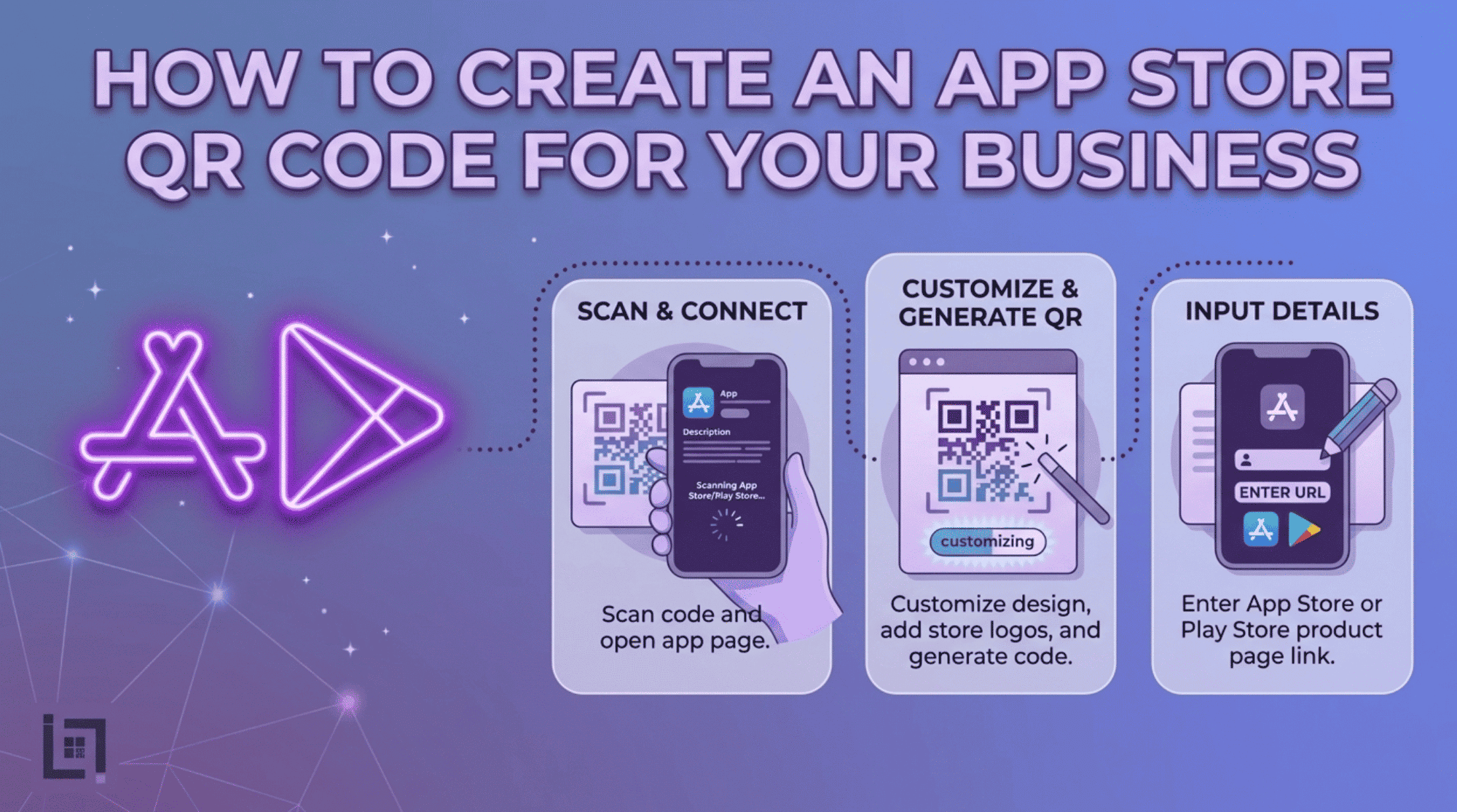
    1. Access the QR Generator: Navigate to the “Create QR” section in the main dashboard menu.
    2. Select Content Type: From the content selection menu, click on the Play Market / App Store icon. This will load the specialized fields designed for app redirection.
    3. Enter Details: * Paste your app’s store page link (or your App Store/Play Store URL) into the designated field.
      • Provide a custom name in the “Name Your QR” field to keep your campaigns categorized and easy to track.
    4. Generate Code: Click the purple Generate QR Code button. Your smart, device-detecting QR code will be ready for immediate use.

    Where to Place Your App Store QR Code for Maximum Scans

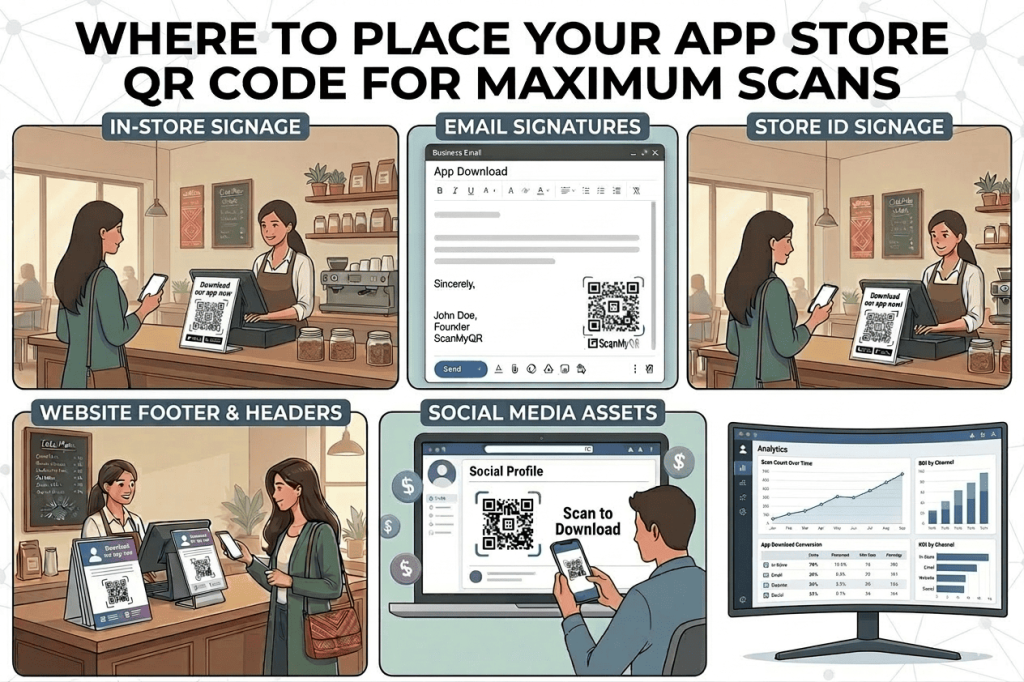
    Placement dictates your success. To maximize your download rate, integrate these codes into your existing marketing mix:

    How to Create an App Store QR Code for Your Business
    • Website Footer & Headers: Place the code prominently on your website, encouraging desktop visitors to grab the mobile experience.
    • Email Signatures: Include the QR code in the footer of your outgoing business emails to ensure every recipient has access to your mobile tools.
    • In-Store or On-Site Signage: If you operate a physical location, a QR code on the front desk or checkout counter allows customers to download your app while they wait or complete a purchase.
    • Social Media Assets: While people are browsing on a computer, they can scan your code with their phone to download your app, bridging the gap between desktop discovery and mobile usage.

    3 Golden Rules for QR Code Success

    1. Always Include a Call to Action (CTA): A code without context is easily ignored. Pair your QR code with a compelling reason to scan, such as: Download our app to get 10% off your first order! or Get instant notifications by downloading our app.
    2. Prioritize Design and Size: An App Store QR code needs to be large enough to be captured by a camera from a reasonable distance. Always aim for a minimum of 2cm x 2cm for business cards, and much larger for posters or banners.
    3. Verify Your Links: Always perform a pre-flight test. Finally, scan the generated code with both an iPhone and an Android phone to ensure that the device detection is working. In doing so, you can confirm that both versions of your app download page are loading correctly.

    Ready to Supercharge Your Lead Generation?

    Building an app is only half the battle; getting people to use it is the true challenge. By utilizing smart QR technology, you remove the friction that causes potential users to drop off. Stop settling for a passive app promotion strategy and start actively driving downloads through every physical and digital touchpoint you own. 

    If you’re looking for more ways to connect with customers using QR codes, check out our detailed guide on How to Create a WhatsApp QR Code for Business. It covers everything you need to know about setting up a WhatsApp QR Code to let customers reach you instantly with just a scan.
  • How to Create a Wi-Fi QR Code for Your Business

    How to Create a Wi-Fi QR Code for Your Business

    Overview


    In Today, seamless internet access is a fundamental expectation for every business, not just a luxury anymore. Every business, from cafes to offices, needs ready-to-use internet for customers arriving with phones and laptops.

    Sharing Wi-Fi passwords verbally or on paper is inefficient, frustrating for guests, and creates unnecessary digital friction. It creates “digital friction” that frustrates guests and ties up your staff. If a customer struggles to connect to your network, they walk away with a negative impression of your business.

    The solution is a Wi-Fi QR Code. Digitizing network access allows single, error-free scans, instantly elevating your customer experience from troublesome to tech-forward.

    What Exactly is a Wi-Fi QR Code?


    A Wi-Fi QR code is a secure, encrypted barcode containing your network name, password, and encryption credentials. Scanning this code with a smartphone camera automatically pulls details and prompts the guest to join your network. It completely bypasses the need to manually search for the network name in the settings menu, select it, and type in a complicated string of characters. It is the ultimate digital handshake clean, professional, and entirely frictionless.


    Why Your Business Needs a Wi-Fi QR Code


    Before you let another guest struggle with your Wi-Fi password, consider why this tool is essential for modern business operations:

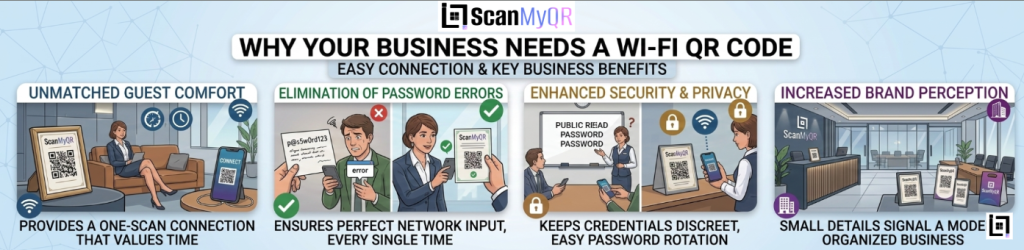
    ● Unmatched Guest Comfort: Your customers appreciate a business that values their time. Providing a one-scan connection demonstrates that you understand the modern professional’s needs.
    ● Elimination of Password Errors: No more confused guests typing “password123” instead of “P@ssw0rd123.” A QR code ensures the input is perfect every time.
    ● Enhanced Security and Privacy: Instead of staff shouting passwords across a room or leaving them written on a public whiteboard, a QR code keeps your network credentials discreet. It also makes it easier to change your password regularly without needing to update physical signs manually.
    ● Increased Brand Perception: Small details matter. A sleek, branded QR code signals that your business is modern, organized, and focused on providing a high-quality environment for your patrons.

    How to make custom Qr for Wi-Fi: The Custom Link Method

    Generating a secure Wi-Fi QR code is a straightforward process designed to secure your network while maximizing guest convenience:

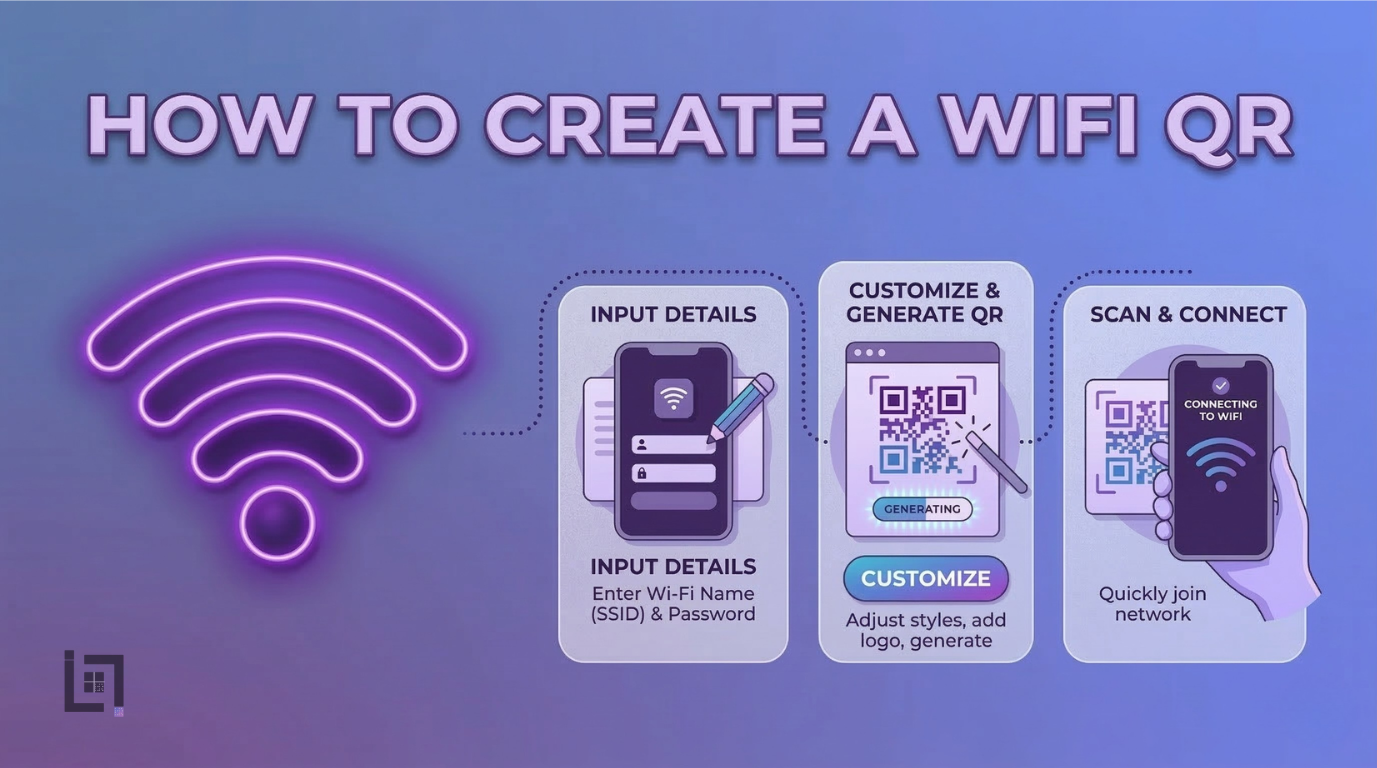
    1. Access the QR Generator: First, navigate to the “Create QR” section located within the main menu of your professional user dashboard.
    2. Select Content Type: Click on the Wi-Fi icon. This will open the configuration fields specific to network settings.
    3. Enter Details: * Input your Network Name (SSID) exactly as it appears on your router.
      ○ Enter your current Wi-Fi Password.
      ○ Select your network’s encryption type (usually WPA/WPA2).
      ○ Provide a custom name in the “Name Your QR” field so you can easily manage the code within your dashboard.
    4. Generate Code: Click the purple Generate QR Code button. Your secure access code will be generated instantly.

    Where to Place Your Wi-Fi QR Code for Maximum Scans


    To get the most utility out of your Wi-Fi QR code, strategic placement is key. Here are the most effective locations:

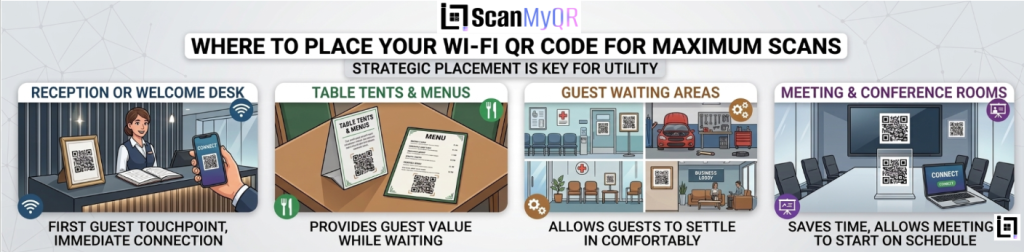
    • The Reception or Welcome Desk: This is the first place a guest looks. A small, framed QR code on your front desk invites them to get connected the moment they arrive.
    • Table Tents and Menus: In hospitality settings, place the code on small table tents or at the bottom of your physical menus. It provides value to the guest while they are waiting for service.
    • Guest Waiting Areas: Whether it’s a lobby, a doctor’s waiting room, or a car service center, placing a QR code at eye level in the seating area allows guests to settle in comfortably.
    • Meeting and Conference Rooms: Displaying QR codes in meeting spaces saves presenters time, allowing corporate sessions to start on schedule without technical delays.

    3 Golden Rules for QR Code Success


    To ensure your network access remains secure and user-friendly, follow these best practices:

    1. Use a Call to Action (CTA): Even for Wi-Fi, context is helpful. Include a small label like “Scan to join our Guest Wi-Fi” or “Need to get online? Scan here.”
    2. Prioritize Network Security: Always ensure that your QR code is routing guests to a Guest Network that is separate from your internal, sensitive business files. This allows you to provide internet access without compromising your data.
    3. Keep Your Credentials Updated: If you change your Wi-Fi password for security reasons, remember to generate a new QR code immediately. A code that leads to a “wrong password” error is just as frustrating as having no Wi-Fi at all.

    Ready to Supercharge Your Lead Generation?


    Providing excellent Wi-Fi is just the beginning of the “frictionaless” customer journey. By removing the small, everyday hurdles your customers face, you build massive amounts of goodwill and trust. Beyond Wi-Fi, optimize every digital entry point from first contact to final sale to de-bottleneck your customer experience.

  • How to Create a WhatsApp QR Code

    How to Create a WhatsApp QR Code

    In today’s hyper-connected world, speed is the ultimate currency. Capture interest quickly whether clients see your van, read your flyer, or visit your site.. Consequently, making that first interaction count is vital to securing their business to create whatsapp qr code on Scan my qr.

    Whether a potential client spots your company van, reads your flyer, or visits your website, you have a tiny window of time to capture their interest. In fact, studies show that attention spans are shorter than ever. Consequently, if you fail to provide an immediate digital bridge during that brief encounter, you risk losing that lead forever.

    That process is full of “digital friction.” In the service industry, friction costs you money.

    The solution? A WhatsApp QR Code.

    By turning your contact number into a scannable code, you reduce the journey from I need help to I m chatting with a professional down to a single second. In this comprehensive guide, we will show you exactly how to create a WhatsApp QR code for your business, where to put it, and how to use it to generate more leads.

    What Exactly is a WhatsApp QR Code?

    A WhatsApp QR (Quick Response) code is a unique barcode that, when scanned by a smartphone camera, instantly opens a WhatsApp chat window with your business. It bypasses the need for the user to manually save your phone number.

    Think of it as a digital bridge. It takes a customer from the physical world (looking at your business card, storefront, or invoice) directly into a private, one-on-one digital conversation with your sales team.

    Why Your Business Needs a WhatsApp QR Code

    Before we dive into the steps, let’s look at why this simple tool is an absolute game-changer for service-based businesses like plumbers, electricians, cleaners, and real estate agents:

    Create a whatsapp qr code

    Zero Typos, Zero Lost Leads: Humans make mistakes. A single wrong digit typed into a phone means a lost customer. A QR code guarantees 100% accuracy every single time.

    Instant Gratification: Customers love WhatsApp because it’s casual, immediate, and convenient. Giving them a QR code caters to their desire for fast communication.

    Pre-Filled Intent: As you’ll see in the steps below, you can program your QR code so that when the customer scans it, a message like “Hi, I’d like to request a quote” is already typed out for them. All they have to do is hit send! Bridging Offline and Online: It turns static, offline marketing materials (like brochures and billboards) into interactive, lead-generating assets.

    How to Create a WhatsApp QR Code: The Custom Link Method (With Pre-Filled Messages)

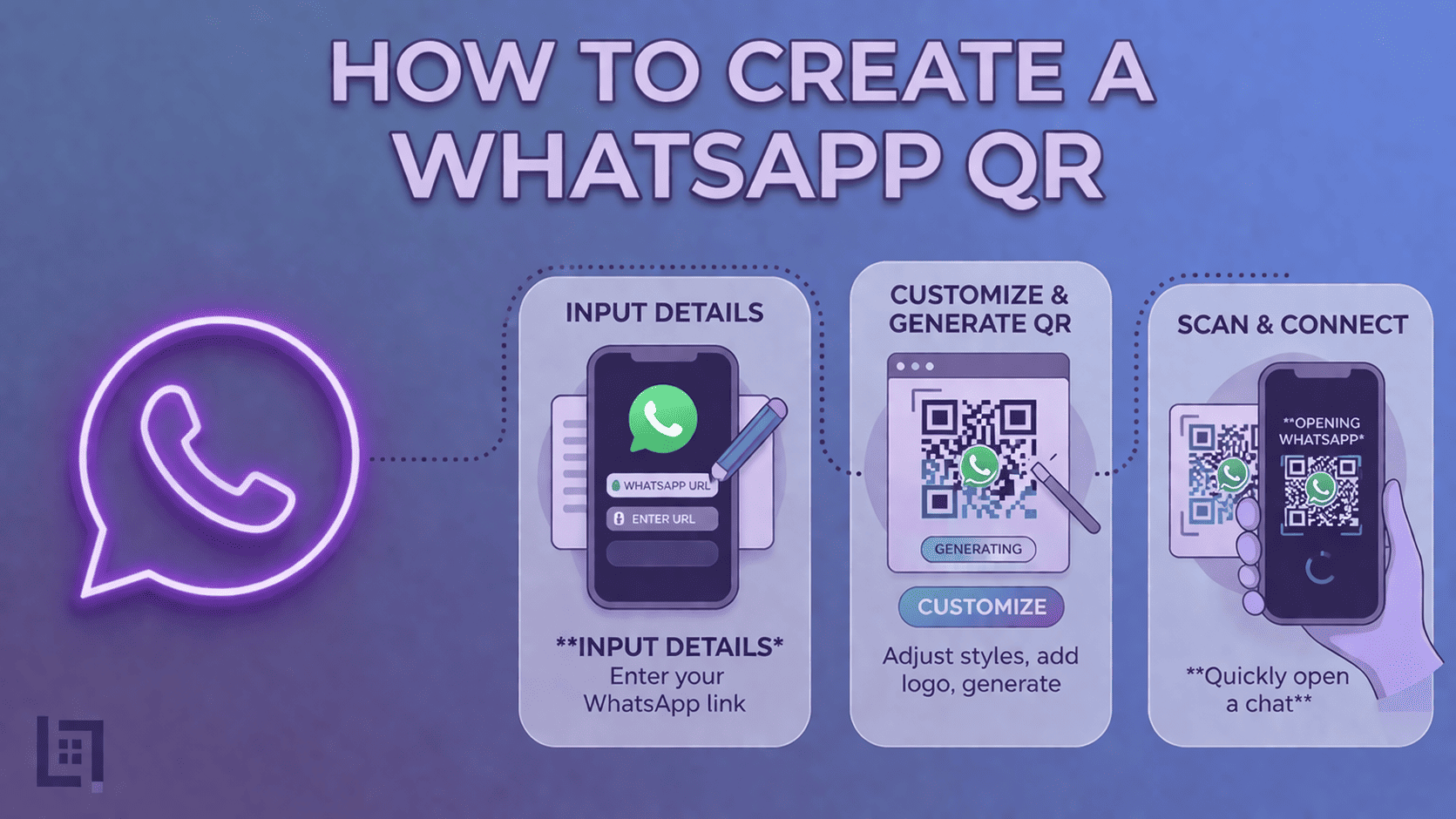
    ● Access the QR Generator: Navigate to the platform’s “Create QR” section in the top menu.
    ● Select Content Type: From the content selection menu, click on the WhatsApp icon to load the specific generator fields.
    ● Enter Details: Provide the necessary information requested in the fields below:
    ○ Enter your Phone Number in the required field.
    ○ Enter your desired Text Message in the required field.
    ○ Optionally, provide a custom name in the Name Your QR field to help you organize your generated codes.
    ● Generate Code: Once you have entered all the required details, click the purple Generate QR Code button located at the bottom of the page.

    Where to Place Your WhatsApp QR Code for Maximum Scans

    Creating the code is only half the battle; placement is where the magic happens. Here are the most effective places to put your new QR code:

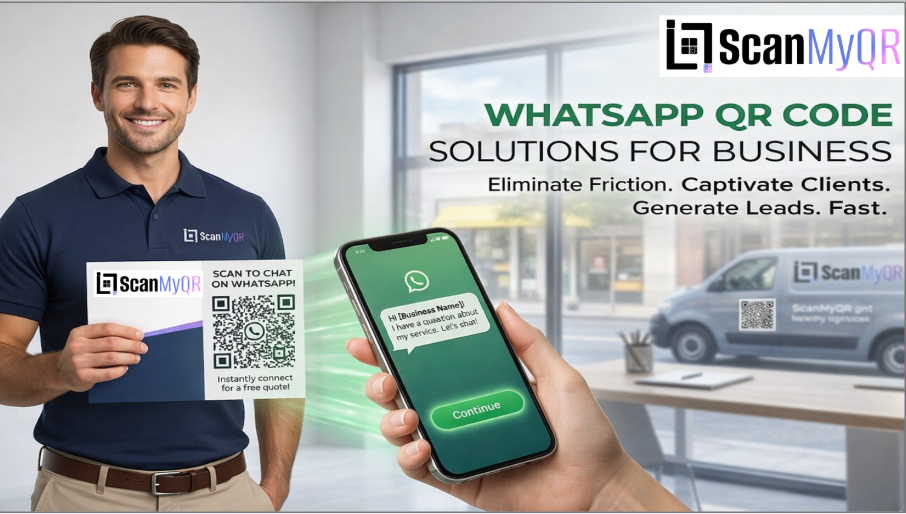
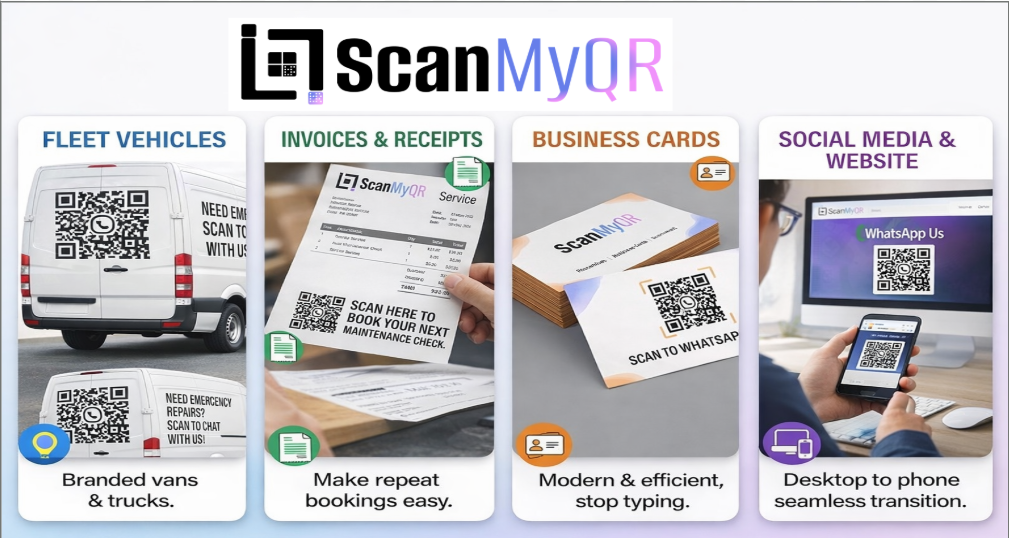
    On Your Fleet Vehicles: If you drive a branded van or truck, put a large QR code on the back doors with a Call to Action (CTA) like, “Need emergency repairs? Scan to chat with us now!”

    Invoices and Receipts: Make it easy for repeat customers to book you again. A QR code on an invoice that says “Scan here to book your next maintenance check” works wonders.

    Create whatsapp qr code

    Business Cards: Stop making people type out your details. A simple “Scan to WhatsApp me” on the back of your card is modern and efficient.

    Social Media & Website: While people are already online, giving them a QR code they can scan off their desktop monitor straight to their phone bridges the gap perfectly.

    Golden Rules for QR Code Success

    To ensure your code actually converts, follow these strict best practices:

    Always Include a Call to Action (CTA): A naked QR code is confusing. Always tell the user why they should scan it (e.g., “Scan for a Free Quote”).

    Size it Right: A QR code on a business card should be at least 2cm x 2cm. If it’s on a billboard or van, it needs to be massive. If a phone camera can’t focus on it, it’s useless.

    Test Before You Print: Never send a QR code to the printers without testing it on both an iPhone and an Android device first.

    Ready to Supercharge Your Lead Generation?

    Creating a basic WhatsApp QR code is a great first step toward modernizing your business. But if you want to treat your physical marketing with the same precision as your digital ads, you need trackable, dynamic tools.

    Stop guessing how many leads your physical signs are generating. Take control of your customer journey with intelligent routing, real-time analytics, and seamless digital entry points.

  • Create a Link QR Code for Your Business

    Create a Link QR Code for Your Business

    Overview


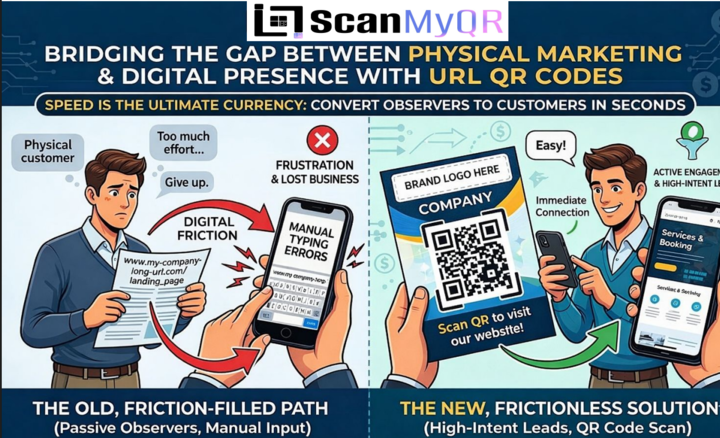
    In today’s hyper-connected world, Link qr code speed is the ultimate currency. When potential clients see your van, flyer, or website, you have a tiny window to capture their interest. Forcing customers to type long web addresses on their phones creates digital friction that makes them give up. In business, friction costs you money. If customers must work for information, they often give up and move to a competitor who makes it easier. Our QR tool connects your physical marketing to digital results, turning passive observers into high-intent, active leads by creating.

    Create a URL/Link QR Code

    What Exactly is a Link QR Code?


    A A URL QR code is a scannable barcode that instantly directs a smartphone camera to any specific website. It bypasses the need for the user to manually enter your domain into their browser. Think of it as a digital portal, taking customers from physical storefronts directly onto your digital home turf. Our QR images condense complex data into one scan, ensuring your audience sees your content with zero effort.

    Why Your Business Needs These QR Codes


    See why this simple tool is a game-changer for every industry before we dive into the specific logistics.


    ● Zero Typos, Zero Lost Leads: Humans are prone to making mistakes. A single wrong character in a URL leads to a “404 Not Found” error, which usually results in the customer leaving your site immediately. A QR code guarantees 100% accuracy every single time.
    ● Instant Gratification: Customers value their time. Giving them a QR code that loads your site in under a second caters to their desire for convenience and immediate results.
    ● Enhanced Tracking: By using professional-grade dynamic QR codes, you can track exactly where, when, and how many times your codes are scanned,
    allowing you to measure the ROI of your physical advertising.
    ● Bridging Offline and Online: It turns your static marketing assets like posters, flyers, and direct mail into interactive, lead-generating engines that can be updated in real-time.

    How to make custom Qr for URL: The Custom Link Method


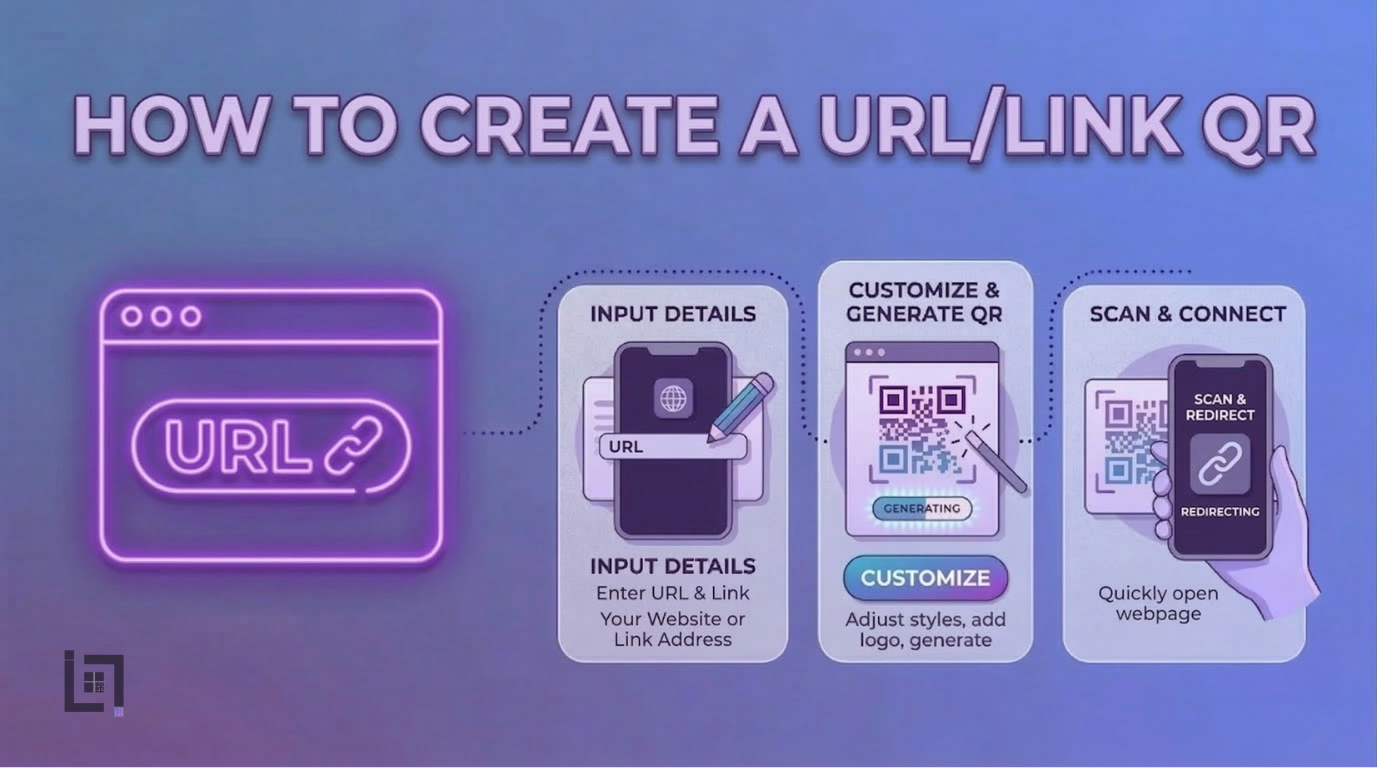
    Generating a custom URL QR code is a simple, three-step process designed to get you live in seconds:

    1. Access the QR Generator: Navigate to the “Create QR” section in your dashboard’s top menu.
    2. Select Content Type: From the content selection menu, click on the URL/Link icon to load the configuration fields.
    3. Enter Details: * Provide the full website URL (including the https://) in the required field.
      ○ Optionally, provide a custom name in the “Name Your QR” field to help you organize your generated codes for different marketing campaigns.
    4. Generate Code: Once you have confirmed your details, click the purple Generate QR Code button located at the bottom of the page.

    Where to Place Your QR Code for Maximum Scans


    Creating the code is only half the battle; placement is where the magic happens. Here are the most effective places to put your new QR code:
    ● On Your Printed Marketing Materials: Use them on brochures, flyers, and direct mail campaigns to take people directly to a landing page where they can request a quote or sign up for a service.
    ● In-Store or On-Site Signage: If you have a physical location or job site, place a QR code at the entrance or on your equipment to show visitors your online portfolio or service list.

    Create a URL/Link QR Code

    ● Business Cards: Stop making people type out your details manually. A simple QR code on the back of your business card that links to your “About Us” or “Contact” page is modern, professional, and efficient.
    ● Trade Show Displays: If you are participating in an industry event, place large-format QR codes on your banners to allow attendees to save your information instantly.

    3 Golden Rules for QR Code Success


    To ensure your code actually converts, follow these strict best practices:

    1. Always Include a Call to Action (CTA): A naked QR code is confusing. Always tell the user why they should scan it (e.g., “Scan to view our latest portfolio” or “Scan to get a free quote”).
    2. Size it Right: A QR code on a business card should be at least 2cm x 2cm. If it’s on a billboard or a shop sign, it needs to be much larger. If a phone camera cannot focus on it, it is useless.
    3. Test Before You Print: Never send a QR code to the printers without testing it on both an iPhone and an Android device first. If the link doesn’t open perfectly, you have wasted your printing budget.

    Ready to Supercharge Your Lead Generation?

    Creating a basic URL QR code is a great first step toward modernizing your business. But if you want to treat your physical marketing with the same precision as your digital ads, you need trackable, dynamic tools. Stop guessing how many leads your physical signs are generating. Take control of your customer journey

    If you want to make it easier for customers to connect to your network, check out our detailed guide on How to Create a Wi-Fi QR Code for Your Business. It covers everything you need to know about setting up a Wi-Fi QR Code so customers can connect instantly with just a scan.