Blog

  • How to Create a Wi-Fi QR Code for Your Business

    How to Create a Wi-Fi QR Code for Your Business

    Overview
    In today’s hyper connected world, seamless internet access is no longer a luxury; it is a fundamental expectation for every business. Whether you run a bustling coffee shop, a professional dental office, a boutique hotel, or a corporate workspace, your customers and clients arrive with their phones and laptops, ready to get online.

    The problem is that the traditional method of sharing Wi Fi handing out a slip of paper or verbalizing a long, complex, case-sensitive password is fraught with inefficiency. It creates “digital friction” that frustrates guests and ties up your staff. If a customer struggles to connect to your network, they walk away with a negative impression of your business.

    The solution is a Wi-Fi QR Code. By digitizing your network access, you allow guests to join your network in a single, error-free scan, instantly elevating your customer experience from “troublesome” to “tech-forward.”

    What Exactly is a Wi-Fi QR Code?
    A Wi-Fi QR code is a secure, encrypted barcode that contains all the necessary credentials for your network: the Service Set Identifier (SSID), the Wi-Fi password, and the network encryption type (such as WPA or WPA2). When a guest scans this code with their smartphone camera, the device automatically pulls these details and prompts the user to join the network. It completely bypasses the need to manually search for the network name in the settings menu, select it, and type in a complicated string of characters. It is the ultimate digital handshake clean, professional, and entirely frictionless.


    Why Your Business Needs a Wi-Fi QR Code
    Before you let another guest struggle with your Wi-Fi password, consider why this tool is essential for modern business operations:

    ● Unmatched Guest Comfort: Your customers appreciate a business that values their time. Providing a one-scan connection demonstrates that you understand the modern professional’s needs.
    ● Elimination of Password Errors: No more confused guests typing “password123” instead of “P@ssw0rd123.” A QR code ensures the input is perfect every time.
    ● Enhanced Security and Privacy: Instead of staff shouting passwords across a room or leaving them written on a public whiteboard, a QR code keeps your network credentials discreet. It also makes it easier to change your password regularly without needing to update physical signs manually.
    ● Increased Brand Perception: Small details matter. A sleek, branded QR code signals that your business is modern, organized, and focused on providing a high-quality environment for your patrons.

    How to make custom Qr for Wi-Fi: The Custom Link Method

    Generating a secure Wi-Fi QR code is a straightforward process designed to secure your network while maximizing guest convenience:

    1. Access the QR Generator: Navigate to the “Create QR” section in the main menu of your dashboard.
    2. Select Content Type: Click on the Wi-Fi icon. This will open the configuration fields specific to network settings.
    3. Enter Details: * Input your Network Name (SSID) exactly as it appears on your router.
      ○ Enter your current Wi-Fi Password.
      ○ Select your network’s encryption type (usually WPA/WPA2).
      ○ Provide a custom name in the “Name Your QR” field so you can easily manage the code within your dashboard.
    4. Generate Code: Click the purple Generate QR Code button. Your secure access code will be generated instantly.

    Where to Place Your Wi-Fi QR Code for Maximum Scans
    To get the most utility out of your Wi-Fi QR code, strategic placement is key. Here are the most effective locations:

    • The Reception or Welcome Desk: This is the first place a guest looks. A small, framed QR code on your front desk invites them to get connected the moment they arrive.
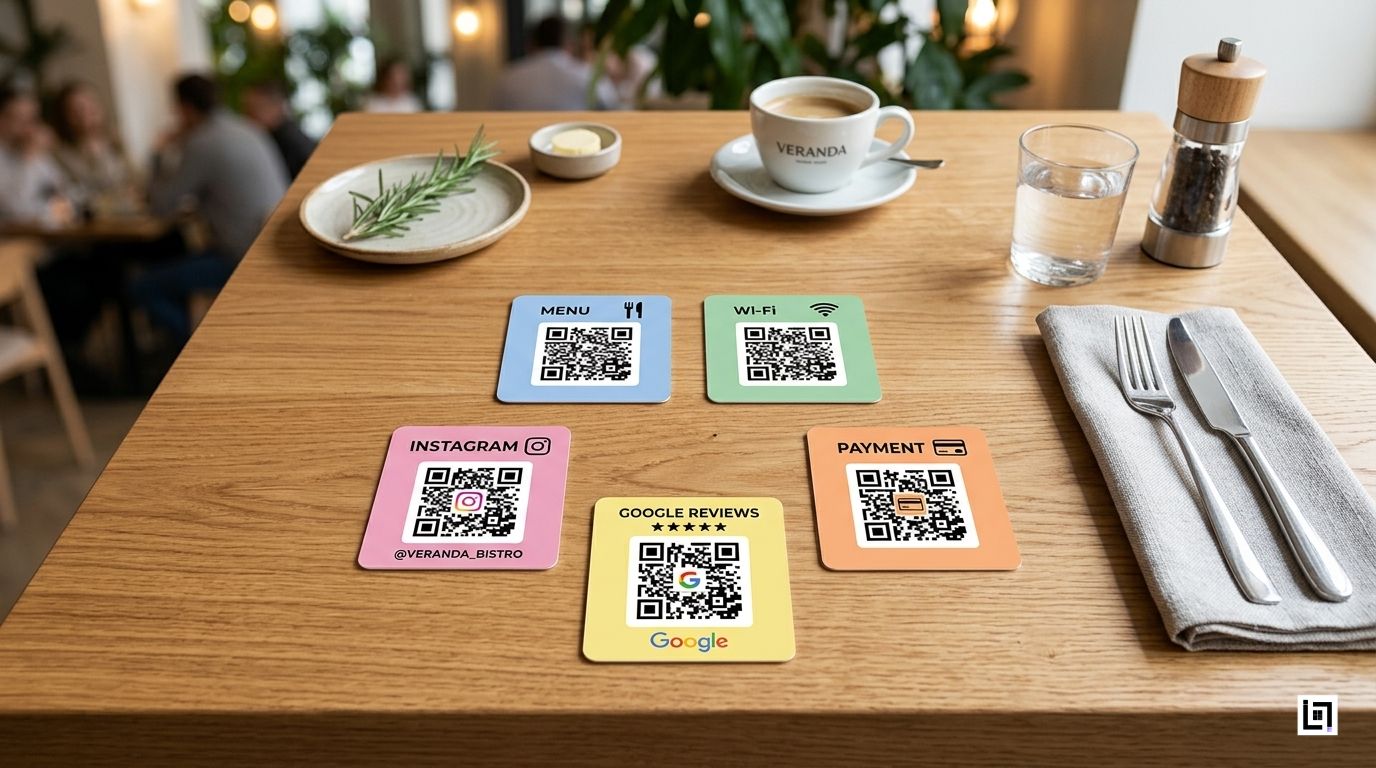
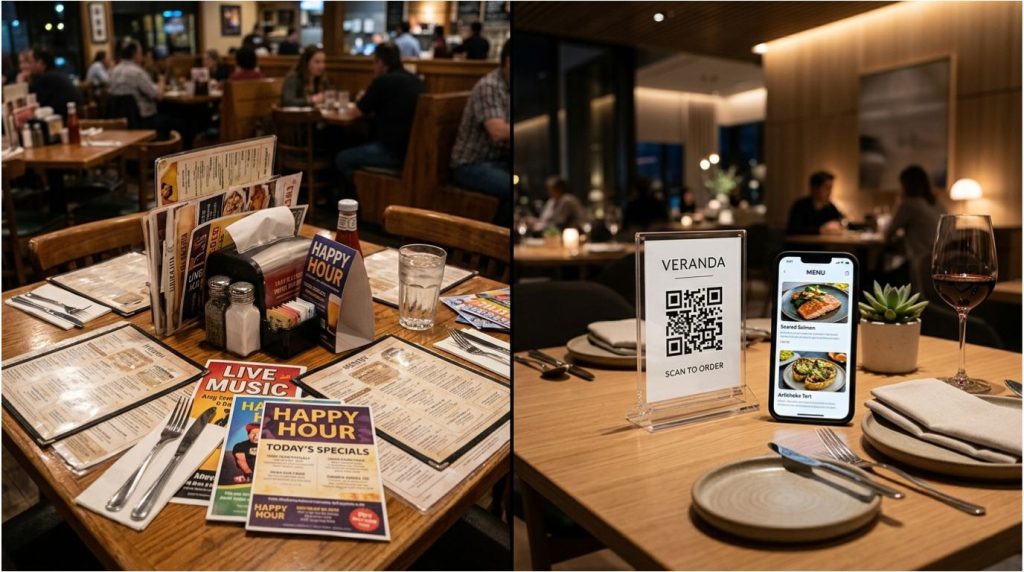
    • Table Tents and Menus: In hospitality settings, place the code on small table tents or at the bottom of your physical menus. It provides value to the guest while they are waiting for service.
    • Guest Waiting Areas: Whether it’s a lobby, a doctor’s waiting room, or a car service center, placing a QR code at eye level in the seating area allows guests to settle in comfortably.
    • Meeting and Conference Rooms: In a corporate setting, having a QR code clearly displayed in meeting spaces saves presenters and visitors time, allowing meetings to start on schedule without technical delays.

    3 Golden Rules for QR Code Success
    To ensure your network access remains secure and user-friendly, follow these best practices:

    1. Use a Call to Action (CTA): Even for Wi-Fi, context is helpful. Include a small label like “Scan to join our Guest Wi-Fi” or “Need to get online? Scan here.”
    2. Prioritize Network Security: Always ensure that your QR code is routing guests to a Guest Network that is separate from your internal, sensitive business files. This allows you to provide internet access without compromising your data.
    3. Keep Your Credentials Updated: If you change your Wi-Fi password for security reasons, remember to generate a new QR code immediately. A code that leads to a “wrong password” error is just as frustrating as having no Wi-Fi at all.

    Ready to Supercharge Your Lead Generation?
    Providing excellent Wi-Fi is just the beginning of the “frictionaless” customer journey. By removing the small, everyday hurdles your customers face, you build massive amounts of goodwill and trust. But don’t stop at Wi-Fi; your digital entry points should be optimized across every single interaction, from the first contact to the final sale. If you’re ready to see how dynamic QR technology can de-bottleneck your entire customer experience, let’s take a deeper look at your business operations.

  • How to Create a WhatsApp QR Code for Business

    How to Create a WhatsApp QR Code for Business

    In today’s hyper connected world, speed is the ultimate currency. If a potential client spots your company van, reads your flyer, or visits your website, you have a tiny window of time to capture their interest.

    If they have to manually type in your 10 digit phone number, save it to their contacts, open WhatsApp, search for your name, and finally type out a message… you’ve already lost them. That process is full of “digital friction.” In the service industry, friction costs you money.

    The solution? A WhatsApp QR Code.

    By turning your contact number into a scannable code, you reduce the journey from I need help to I m chatting with a professional down to a single second. In this comprehensive guide, we will show you exactly how to create a WhatsApp QR code for your business, where to put it, and how to use it to generate more leads.

    What Exactly is a WhatsApp QR Code?

    A WhatsApp QR (Quick Response) code is a unique barcode that, when scanned by a smartphone camera, instantly opens a WhatsApp chat window with your business. It bypasses the need for the user to manually save your phone number.

    Think of it as a digital bridge. It takes a customer from the physical world (looking at your business card, storefront, or invoice) directly into a private, one-on-one digital conversation with your sales team.

    Why Your Business Needs a WhatsApp QR Code

    Before we dive into the steps, let’s look at why this simple tool is an absolute game-changer for service-based businesses like plumbers, electricians, cleaners, and real estate agents:

    Zero Typos, Zero Lost Leads: Humans make mistakes. A single wrong digit typed into a phone means a lost customer. A QR code guarantees 100% accuracy every single time.

    Instant Gratification: Customers love WhatsApp because it’s casual, immediate, and convenient. Giving them a QR code caters to their desire for fast communication.

    Pre-Filled Intent: As you’ll see in the steps below, you can program your QR code so that when the customer scans it, a message like “Hi, I’d like to request a quote” is already typed out for them. All they have to do is hit send! Bridging Offline and Online: It turns static, offline marketing materials (like brochures and billboards) into interactive, lead-generating assets.

    How to make custom Qr for whatsapp: The Custom Link Method (With Pre-Filled Messages)

    ● Access the QR Generator: Navigate to the platform’s “Create QR” section in the top menu.
    ● Select Content Type: From the content selection menu, click on the WhatsApp icon to load the specific generator fields.
    ● Enter Details: Provide the necessary information requested in the fields below:
    ○ Enter your Phone Number in the required field.
    ○ Enter your desired Text Message in the required field.
    ○ Optionally, provide a custom name in the Name Your QR field to help you organize your generated codes.
    ● Generate Code: Once you have entered all the required details, click the purple Generate QR Code button located at the bottom of the page.

    Where to Place Your WhatsApp QR Code for Maximum Scans

    Creating the code is only half the battle; placement is where the magic happens. Here are the most effective places to put your new QR code:

    On Your Fleet Vehicles: If you drive a branded van or truck, put a large QR code on the back doors with a Call to Action (CTA) like, “Need emergency repairs? Scan to chat with us now!”

    Invoices and Receipts: Make it easy for repeat customers to book you again. A QR code on an invoice that says “Scan here to book your next maintenance check” works wonders.

    Business Cards: Stop making people type out your details. A simple “Scan to WhatsApp me” on the back of your card is modern and efficient.

    Social Media & Website: While people are already online, giving them a QR code they can scan off their desktop monitor straight to their phone bridges the gap perfectly.

    Golden Rules for QR Code Success

    To ensure your code actually converts, follow these strict best practices:

    Always Include a Call to Action (CTA): A naked QR code is confusing. Always tell the user why they should scan it (e.g., “Scan for a Free Quote”).

    Size it Right: A QR code on a business card should be at least 2cm x 2cm. If it’s on a billboard or van, it needs to be massive. If a phone camera can’t focus on it, it’s useless.

    Test Before You Print: Never send a QR code to the printers without testing it on both an iPhone and an Android device first.

    Ready to Supercharge Your Lead Generation?

    Creating a basic WhatsApp QR code is a great first step toward modernizing your business. But if you want to treat your physical marketing with the same precision as your digital ads, you need trackable, dynamic tools.

    Stop guessing how many leads your physical signs are generating. Take control of your customer journey with intelligent routing, real-time analytics, and seamless digital entry points.

  • How to Create a URL/Link QR Code for Your Business

    How to Create a URL/Link QR Code for Your Business

    Overview
    In today’s hyper-connected world, speed is the ultimate currency. If a potential client spots your company van, reads your flyer, or visits your website, you have a tiny window of time to capture their interest. The problem is that the physical and digital worlds often feel disconnected. If a customer has to manually type in a long, complex website address into their mobile browser, you have created a massive amount of “digital friction.” In business, friction costs you money. When a customer is forced to work for information, they often simply give up, walk away, or move on to a competitor who makes the process easier. The solution is a URL QR Code a simple, powerful tool that bridges the gap between your physical marketing materials and your digital presence, turning passive observers into active, high-intent leads.

    What Exactly is a URL QR Code?
    A URL (Uniform Resource Locator) QR code is a unique, scannable barcode that directs a user’s smartphone camera instantly to a specific website address. It bypasses the need for the user to manually enter your domain into their browser. Think of it as a digital portal; it takes a customer from the physical world looking at a brochure, a business card, or a storefront window and places them directly onto your digital home turf. It is a highly efficient way to condense complex information into a single, scan-ready image, ensuring that your audience gets to the content you want them to see with zero effort on their part.

    Why Your Business Needs a URL QR Code
    Before we dive into the logistics, let’s look at why this simple tool is an absolute game-changer for businesses across every industry:
    ● Zero Typos, Zero Lost Leads: Humans are prone to making mistakes. A single wrong character in a URL leads to a “404 Not Found” error, which usually results in the customer leaving your site immediately. A QR code guarantees 100% accuracy every single time.
    ● Instant Gratification: Customers value their time. Giving them a QR code that loads your site in under a second caters to their desire for convenience and immediate results.
    ● Enhanced Tracking: By using professional-grade dynamic QR codes, you can track exactly where, when, and how many times your codes are scanned,
    allowing you to measure the ROI of your physical advertising.
    ● Bridging Offline and Online: It turns your static marketing assets like posters, flyers, and direct mail into interactive, lead-generating engines that can be updated in real-time.

    How to make custom Qr for URL: The Custom Link Method
    Generating a custom URL QR code is a simple, three-step process designed to get you live in seconds:

    1. Access the QR Generator: Navigate to the “Create QR” section in your dashboard’s top menu.
    2. Select Content Type: From the content selection menu, click on the URL/Link icon to load the configuration fields.
    3. Enter Details: * Provide the full website URL (including the https://) in the required field.
      ○ Optionally, provide a custom name in the “Name Your QR” field to help you organize your generated codes for different marketing campaigns.
    4. Generate Code: Once you have confirmed your details, click the purple Generate QR Code button located at the bottom of the page.

    Where to Place Your URL QR Code for Maximum Scans
    Creating the code is only half the battle; placement is where the magic happens. Here are the most effective places to put your new QR code:
    ● On Your Printed Marketing Materials: Use them on brochures, flyers, and direct mail campaigns to take people directly to a landing page where they can request a quote or sign up for a service.
    ● In-Store or On-Site Signage: If you have a physical location or job site, place a QR code at the entrance or on your equipment to show visitors your online portfolio or service list.

    ● Business Cards: Stop making people type out your details manually. A simple QR code on the back of your business card that links to your “About Us” or “Contact” page is modern, professional, and efficient.
    ● Trade Show Displays: If you are participating in an industry event, place large-format QR codes on your banners to allow attendees to save your information instantly.

    3 Golden Rules for QR Code Success
    To ensure your code actually converts, follow these strict best practices:

    1. Always Include a Call to Action (CTA): A naked QR code is confusing. Always tell the user why they should scan it (e.g., “Scan to view our latest portfolio” or “Scan to get a free quote”).
    2. Size it Right: A QR code on a business card should be at least 2cm x 2cm. If it’s on a billboard or a shop sign, it needs to be much larger. If a phone camera cannot focus on it, it is useless.
    3. Test Before You Print: Never send a QR code to the printers without testing it on both an iPhone and an Android device first. If the link doesn’t open perfectly, you have wasted your printing budget.

    Ready to Supercharge Your Lead Generation?

    Creating a basic URL QR code is a great first step toward modernizing your business. But if you want to treat your physical marketing with the same precision as your digital ads, you need trackable, dynamic tools. Stop guessing how many leads your physical signs are generating. Take control of your customer journey